Dockerfile Best Practices: Writing Better Container Images
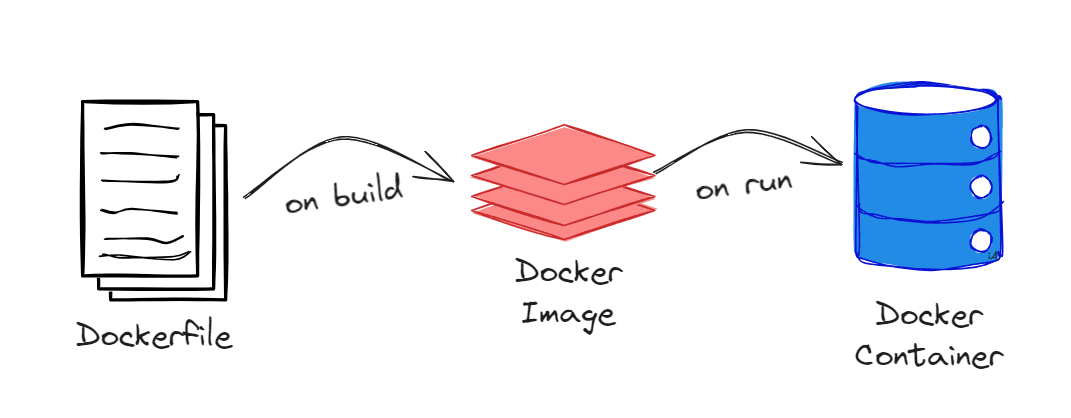
A practical guide to Dockerfile best practices for junior developers. Learn how to write efficient, secure, and maintainable Dockerfiles by understanding layer caching, multi-stage builds, reducing image size, choosing the right base images, and optimizing build times. This beginner-friendly tutorial covers common mistakes to avoid, security considerations, and real-world examples for Node.js applications. Perfect for developers new to Docker who want to create production-ready container images and understand containerization fundamentals.
Dockerfile Best Practices: Writing Better Container Images
When I first started using Docker, I just wanted my app to run in a container. I'd copy-paste Dockerfiles from tutorials without understanding what they did. My images were huge (sometimes over 1GB for a simple Node.js app!), builds took forever, and I had no idea why.
After learning from mistakes and reading lots of documentation, I've picked up some best practices that make a real difference. In this guide, I'll share what I wish I knew when I started with Docker.
What Makes a Good Dockerfile?
Before diving into code, let's talk about what we're aiming for. A good Dockerfile should be:
- Small - Smaller images deploy faster and use less storage
- Fast to build - Using cache properly saves time
- Secure - Minimal attack surface, no unnecessary packages
- Maintainable - Easy to understand and update
Let's see how to achieve these goals.
Start with the Right Base Image
Your base image matters a lot. Here's what I learned:
Bad:
FROM node:latest
Better:
FROM node:18-alpine
Why is Alpine better?
- Size:
node:18is around 900MB,node:18-alpineis only 170MB - Specificity:
latestis unpredictable,18-alpineis explicit - Security: Fewer packages means fewer vulnerabilities
Alpine uses a different package manager (apk instead of apt), but for most Node.js apps, it works perfectly.
Use Specific Version Tags
Never use latest in production. It changes without warning, which can break your builds.
Bad:
FROM node:latest
Good:
FROM node:18-alpine
# Or even more specific
FROM node:18.17-alpine3.18
This way, your builds are reproducible. You know exactly what you're getting.
Leverage Build Cache
Docker caches each layer. If nothing changed, it reuses the cache. This can make builds much faster.
Bad order:
FROM node:18-alpine

# This invalidates cache every time your code changes
COPY . .
RUN npm install

CMD ["npm", "start"]
Good order:
FROM node:18-alpine

# Copy package files first
COPY package*.json ./

# Install dependencies (cached if package.json hasn't changed)
RUN npm ci --only=production

# Copy code last (changes frequently)
COPY . .

CMD ["npm", "start"]
Why does this matter? Dependencies don't change often, but your code does. By copying package.json first and installing dependencies, Docker caches that layer. When you change your code, it doesn't reinstall everything.
Use .dockerignore
Just like .gitignore, you need .dockerignore to exclude unnecessary files.
Create .dockerignore:
node_modules
npm-debug.log
.git
.env
.DS_Store
coverage
.vscode
README.md
This prevents copying files that shouldn't be in your image, making builds faster and images smaller.
Multi-Stage Builds for Production
This is one of the most powerful features. You can have a build stage and a production stage, keeping only what you need in the final image.
Simple Dockerfile:
FROM node:18-alpine

WORKDIR /app

COPY package*.json ./
RUN npm ci

COPY . .

CMD ["npm", "start"]
Multi-stage Dockerfile:
# Build stage
FROM node:18-alpine AS builder

WORKDIR /app

COPY package*.json ./
RUN npm ci

COPY . .
RUN npm run build

# Production stage
FROM node:18-alpine

WORKDIR /app

COPY package*.json ./
RUN npm ci --only=production

COPY --from=builder /app/dist ./dist

CMD ["node", "dist/index.js"]
The final image only has production dependencies and built code. Much smaller!
Don't Run as Root
By default, containers run as root. This is a security risk. Create a non-root user:
FROM node:18-alpine

# Create app directory
WORKDIR /app

# Install dependencies
COPY package*.json ./
RUN npm ci --only=production

# Create a user
RUN addgroup -g 1001 -S nodejs
RUN adduser -S nodejs -u 1001

# Copy app
COPY --chown=nodejs:nodejs . .

# Switch to non-root user
USER nodejs

CMD ["node", "index.js"]
Now if someone compromises your container, they don't have root access.
Combine Commands to Reduce Layers
Each RUN command creates a layer. Combining related commands reduces layers and image size.
Bad:
RUN apk add --no-cache git
RUN apk add --no-cache curl
RUN apk add --no-cache wget
Good:
RUN apk add --no-cache \
    git \
    curl \
    wget
Even better, only install what you need. Do you really need all three?
Clean Up in the Same Layer
If you download something temporarily, clean it up in the same RUN command:
Bad:
RUN apk add --no-cache build-dependencies
RUN npm install
RUN apk del build-dependencies  # This doesn't reduce image size!
Good:
RUN apk add --no-cache build-dependencies && \
    npm install && \
    apk del build-dependencies
The second approach cleans up in the same layer, actually reducing the final image size.
Use COPY Instead of ADD
ADD has extra features (like extracting tar files automatically), but it's less predictable. Use COPY for copying files.
Prefer:
COPY package.json .
COPY src/ ./src/
Avoid unless you need ADD's features:
ADD package.json .
Set Working Directory
Always set a working directory. It makes your Dockerfile clearer and prevents issues.
FROM node:18-alpine

# Good practice
WORKDIR /app

COPY package*.json ./
RUN npm ci

COPY . .
Use Build Arguments for Flexibility
Build arguments let you customize builds without changing the Dockerfile:
FROM node:18-alpine

ARG NODE_ENV=production
ENV NODE_ENV=${NODE_ENV}

WORKDIR /app

COPY package*.json ./
RUN npm ci --only=production

COPY . .

CMD ["node", "index.js"]
Build for development:
docker build --build-arg NODE_ENV=development -t myapp:dev .
Complete Example: Node.js App
Here's a complete Dockerfile following all these practices:
# Use specific version
FROM node:18-alpine

# Create app directory
WORKDIR /app

# Copy package files for caching
COPY package*.json ./

# Install dependencies
RUN npm ci --only=production && \
    npm cache clean --force

# Create non-root user
RUN addgroup -g 1001 -S nodejs && \
    adduser -S nodejs -u 1001

# Copy application code
COPY --chown=nodejs:nodejs . .

# Switch to non-root user
USER nodejs

# Expose port
EXPOSE 3000

# Health check
HEALTHCHECK --interval=30s --timeout=3s --start-period=5s --retries=3 \
    CMD node healthcheck.js

# Start application
CMD ["node", "index.js"]
Common Mistakes I Made
1. Huge images
- Used full Node.js image instead of Alpine
- Didn't use multi-stage builds
- Copied node_modules from host
2. Slow builds
- Copied everything before installing dependencies
- Didn't use .dockerignore
- Didn't leverage cache properly
3. Security issues
- Ran as root user
- Used latest tags
- Exposed unnecessary ports
Learn from my mistakes!
Testing Your Dockerfile
Build and check the size:
docker build -t myapp .
docker images myapp
Run the container:
docker run -p 3000:3000 myapp
Inspect layers:
docker history myapp
This shows each layer's size. Look for unexpectedly large layers.
My Dockerfile Checklist
Before I commit a Dockerfile, I check:
- [ ] Using specific version tags (not
latest) - [ ] Using Alpine or slim variant when possible
- [ ] Created .dockerignore file
- [ ] Dependencies copied and installed before code
- [ ] Multi-stage build for compiled apps
- [ ] Running as non-root user
- [ ] Only exposing necessary ports
- [ ] Combined RUN commands where appropriate
- [ ] No secrets in the image
Optimizing Build Times
Use BuildKit
Enable Docker's BuildKit for faster builds:
DOCKER_BUILDKIT=1 docker build -t myapp .
Or set it permanently:
export DOCKER_BUILDKIT=1
BuildKit enables parallel builds and better caching.
Cache npm/yarn dependencies
Mount a cache for package managers:
RUN --mount=type=cache,target=/root/.npm \
    npm ci --only=production
This caches downloaded packages between builds.
Next Steps
You've learned the basics of writing good Dockerfiles. Here's what to explore next:
- Docker Compose - Running multiple containers together
- Container orchestration - Kubernetes or Docker Swarm
- CI/CD integration - Automated builds and deployments
- Security scanning - Tools like Trivy or Snyk
- Image optimization - Dive deeper into reducing image size
Final Thoughts
Writing good Dockerfiles isn't complicated once you understand the principles. Focus on:
- Using appropriate base images
- Leveraging layer caching
- Keeping images small
- Running securely
Don't stress about making everything perfect from the start. I still find ways to improve my Dockerfiles. The important thing is to keep learning and applying best practices as you go.
Start with a basic Dockerfile that works, then gradually optimize it. Each improvement teaches you something new about how Docker works.
Remember: a working Dockerfile is better than a perfect one that you never finish. Ship it, then improve it!
Happy containerizing! 🐳